

Ad video
From product name and selling points to a campaign-ready short ad.
- Product
- Selling points
- Audience
- Duration
- Style
10–120 s · default 30 s
AI video agent · human direction
PV30 is a video agent with a producer assistant. Describe an ad, a short drama or an explainer — it writes the script, designs every shot, generates consistent images, video and voice, and renders the film. You stay in control of every step.
In one sentence
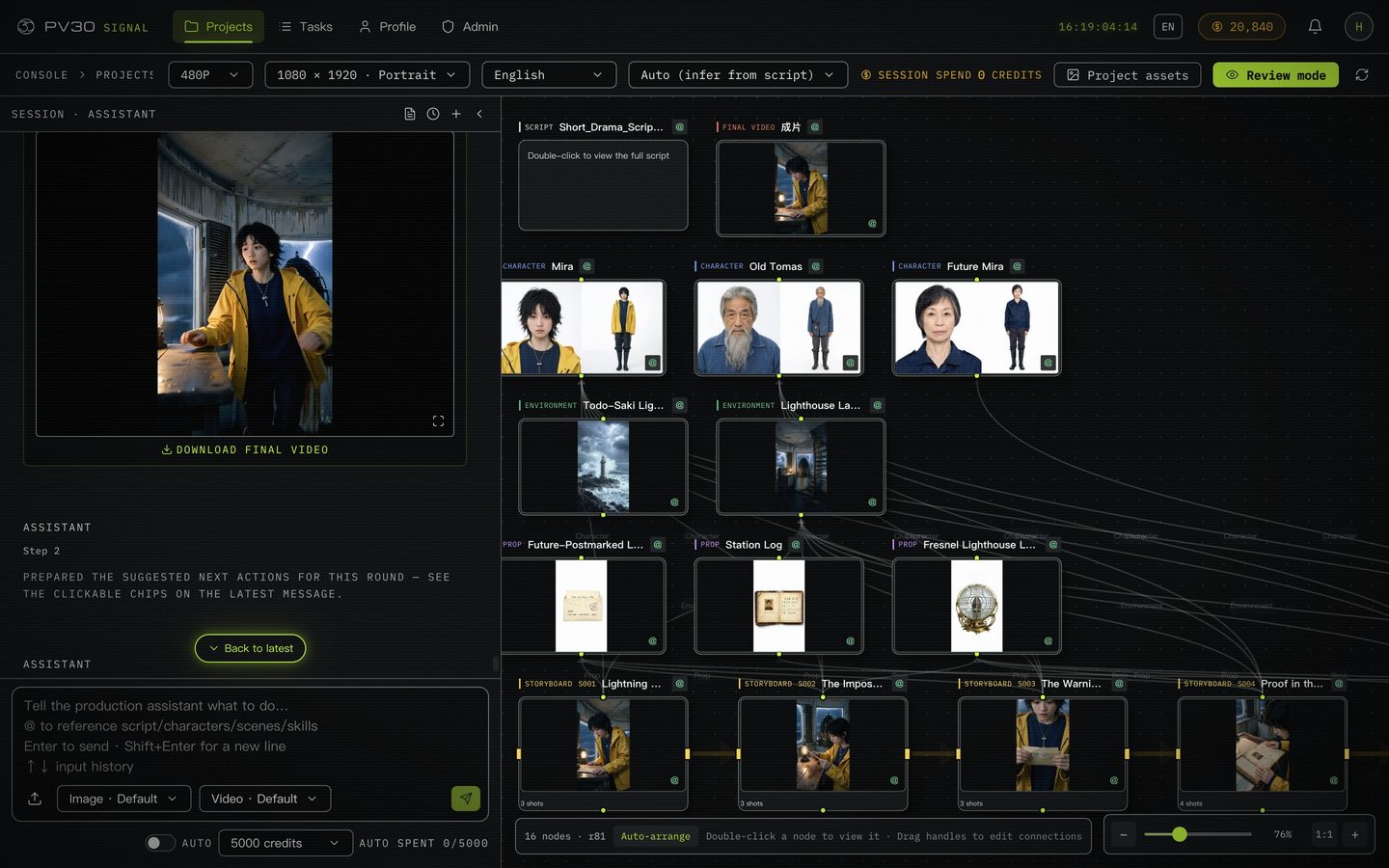
PV30 is a web-based AI video agent. A conversational producer assistant takes a project from idea to final cut — writing the script, breaking it into characters, environments, props and storyboard shots, generating images, video clips and voice-over, and rendering the timeline — while every result stays editable on a visual node canvas. It ships with three video types: ads, short dramas, and tutorials & explainers.
01 · Video types
The video type sets the creation form, prompt templates and default skills. Pick one when you create a project.
From product name and selling points to a campaign-ready short ad.
10–120 s · default 30 s

From a story idea and characters to a fast-paced, high-conflict drama script and film.
30–180 s · default 60 s

From a topic and outline to a well-structured explainer with narration.
30–300 s · default 90 s
02 · Start with what you have
Three ways in — each one lands in the same editable project.
Give the essentials for your video type. The assistant writes the script from scratch using that type’s template.
Imported exactly as written — no rewriting, translating or reordering. PV30 then parses it into shots and elements.
PV30 transcribes the audio, analyses key frames and assembles a script that follows its rhythm and structure.
03 · How it works
Run it end to end with one-click film, or take it one step at a time. Each stage saves real, editable results.
Create from details, import your text verbatim, or extract from a reference video. Revise the whole script in place whenever you like.
The script is parsed into characters, environments and props, and into storyboard shots that reference them. Shot numbers stay stable as you reorder.
Each shot gets beats, framing, camera angle and movement, performance, lighting, keyframes, lines and duration. Review it, then revise from the notes.
Generate element images and storyboard frames, then shot videos and voice-over. Preview the exact prompts for free before you pay for video.
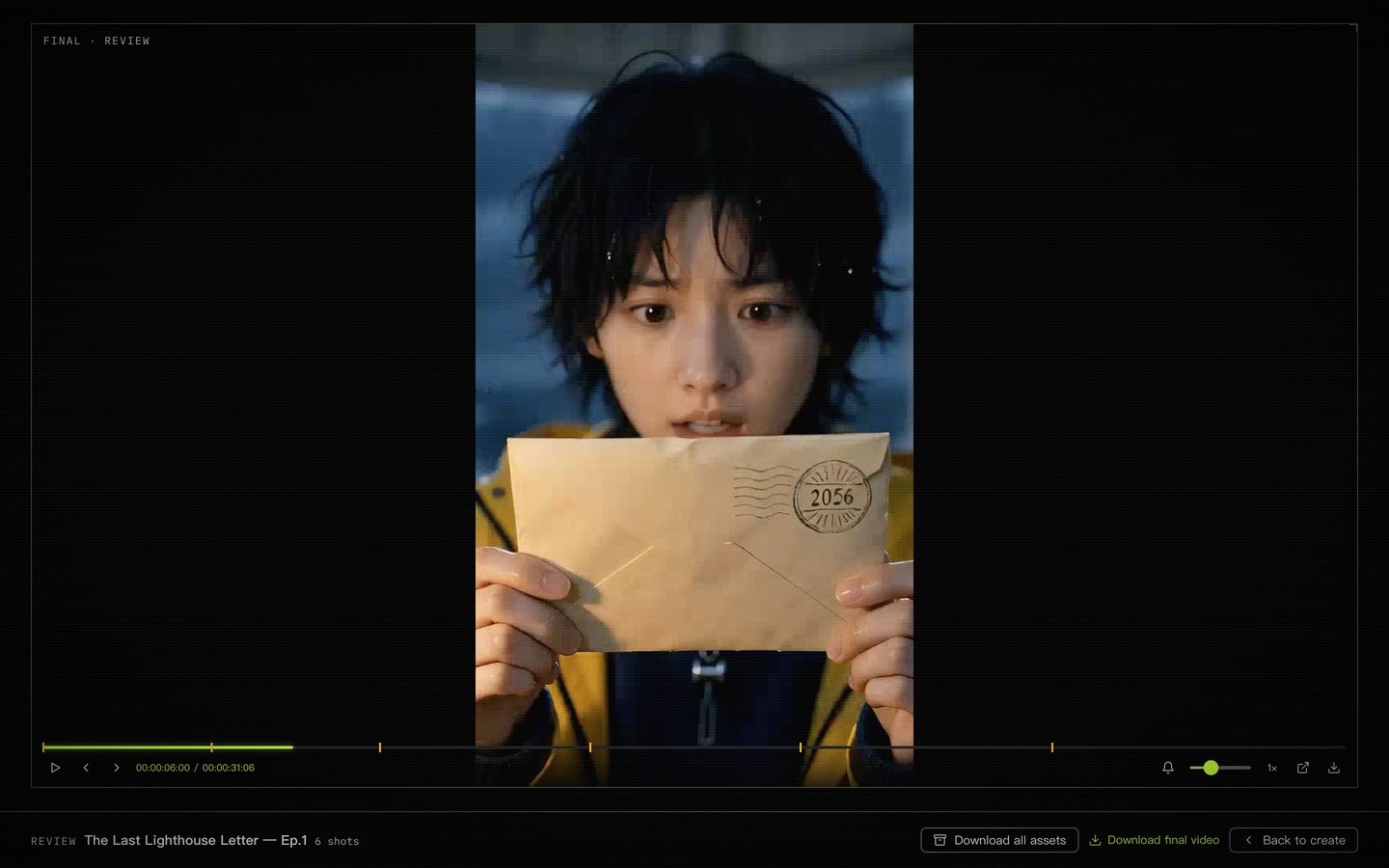
Arrange, trim and swap clips, set transitions and audio tracks, render a preview, then the final cut. Download the film or every asset.
Generation depends on the image, video and voice providers configured for your workspace.
04 · What makes it different
The AI does the heavy lifting. The decisions — and the budget — stay with you.
Streams its thinking, tool calls and step-by-step progress, and suggests next actions you can send with one click.
Send follow-up instructions while it works — they queue in order. Stop the active turn, or reconnect to a running session later.
Paid steps come with a server-side credit quote you confirm. A promise in chat is never enough to spend.
Turn on Auto and the assistant approves allowed quotes within your session budget. Over budget or destructive? It asks you.
Beats, framing, camera moves and lighting per shot, plus a structured review-and-revise loop that snapshots before it changes anything.
Characters, environments and props have reference images reused across shots. Any shot can start from a chosen last frame.
Borrow a clip’s motion, camera movement or effects for a shot, anchored to your own character images. Not face swap, not a copy.
Directing, editing and prompt-writing skills matched to each model, plus five visual styles from realistic to anime and comic.
Regenerating never overwrites. Each node binds the exact asset version you pick; upstream changes mark dependents stale.
Clip order, trims, transitions, source audio and separate voice-over tracks — rendered to a preview and a final cut you can download.
Video jobs persist in the background. Close the tab; the Task Center tracks every job across projects.
Company accounts with members and credit allocation, a credit ledger and price list, and an admin console for models, skills and video types.
05 · Keep your hand on the cut
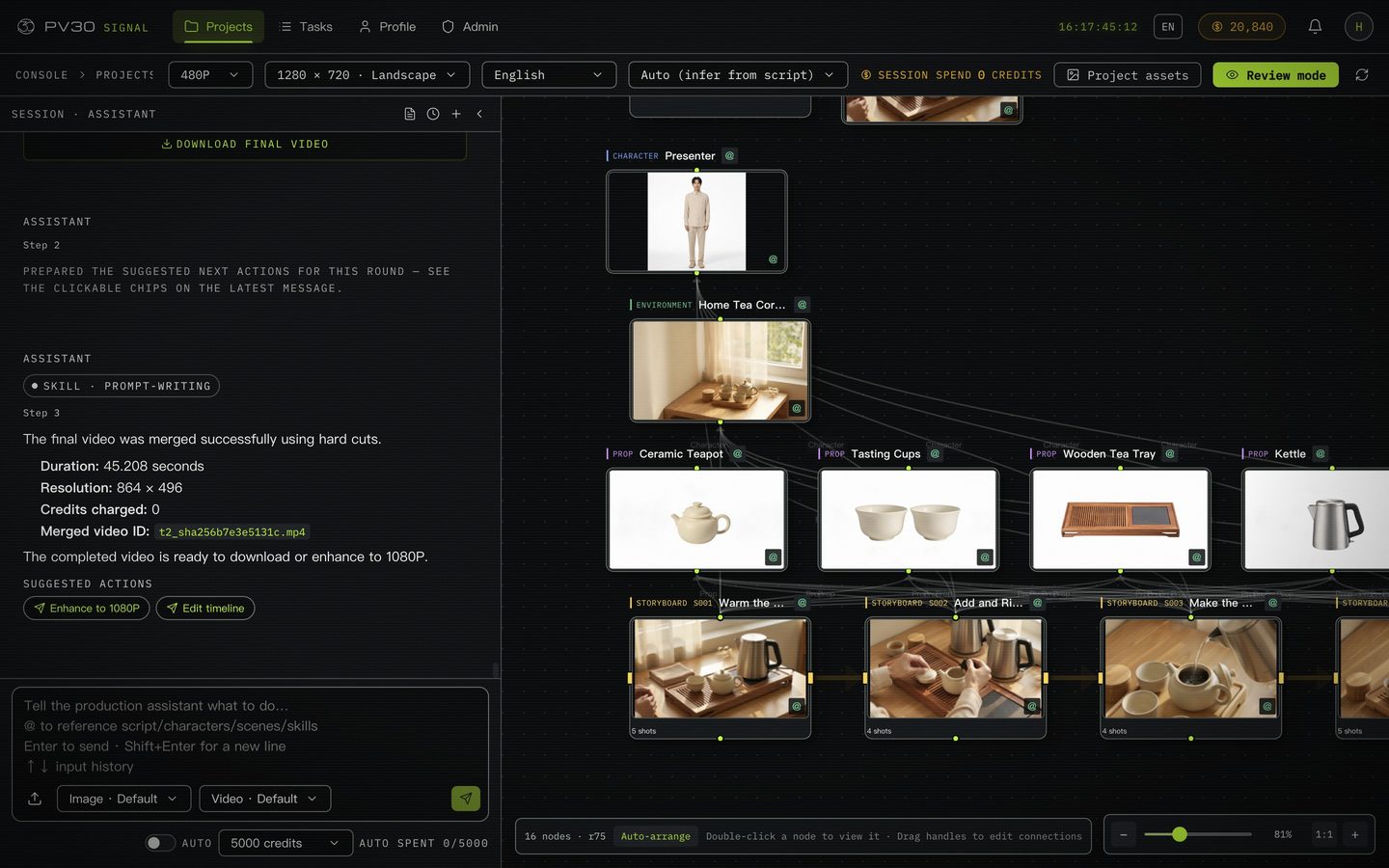
Everything the assistant makes lands on a node canvas you can inspect and change.
Compare versions of a character, environment or shot and bind the one that fits. Other nodes keep their own choice.
Switch an upstream version and dependent nodes are flagged stale — kept as-is until you decide to regenerate.
Resumable uploads for images, video and audio, version history, references in chat, a trash you can restore from, and copying versions across projects.
Double-click any node to open it with its directly related nodes, its bound inputs and the exact generation inputs behind each version.
06 · Models
PV30 orchestrates several providers and keeps each model’s real capabilities — it does not pretend they are the same.
| Kind | Models | Used for |
|---|---|---|
| Images | Seedream 5.0 Lite (default) · Seedream 5.0 Pro · FLUX | Character, environment and prop images; storyboard frames |
| Video | Seedance 2.0 Mini (default) · Seedance 2.0 Pro | Multi-image reference, first frame, one-click film, reference-video replication |
| Video | MiniMax H3 | Text, first / last / first-and-last frame, up to 9 references; 768P or 2K; 4–15 s per clip; durable jobs |
| Video | LTX-2 | First-frame generation on a self-hosted service |
| Voice | MiniMax TTS | Voice-over tracks |
Availability depends on provider accounts and workspace configuration. Generation tier and final render resolution are set separately.
07 · Who it’s for
Turn selling points into campaign ads, and test more creative angles while characters stay on-brand.
Go from story idea and characters to hooked, shot-designed episodes with consistent cast and sets.
Turn a topic and outline into a structured explainer with narration.
Remix a reference video’s structure or camera language into original work, with reviewable storyboards.
08 · Compared
| PV30 | Single-prompt text-to-video | |
|---|---|---|
| Starting point | Creation details, your script or a reference video | One text prompt |
| Output | Multi-shot film with timeline, transitions and voice-over | One short clip |
| Direction | Per-shot framing, camera, performance and lighting | Whatever the prompt implies |
| Consistency | Shared element references and last-frame chaining | Re-described each time; drift between clips |
| Editing | Change one line, shot or asset and regenerate only that | Rewrite the prompt and start over |
| Cost control | Confirmed quotes or a capped Auto budget | Varies by tool |
09 · FAQ
PV30 is an AI video agent. A producer assistant takes your project from script to storyboard, images, video, voice-over and a rendered final cut, and you can edit every result on a visual node canvas.
Three video types are built in: ad videos (10–120 s), short dramas (30–180 s) and tutorials & explainers (30–300 s). Each has its own creation form, prompt templates and default skills, and administrators can edit or disable types.
No. Fill in the creation details for your video type and the assistant writes the script. If you already have a script, paste it and PV30 imports it unchanged; you can also start from a reference video.
Characters, environments and props are key elements with their own reference images, reused by every shot that uses them. A shot can also start from the exact version of a chosen last-frame image.
You can extract a script from a reference video, and with Seedance models you can replicate a clip’s motion, camera movement or effects for a shot, anchored to your own characters. It is not face swap, lip-sync or a one-to-one copy — make sure your use respects third-party rights.
Yes. Edit lines, shots and elements, add, remove or reorder shots, compare and bind asset versions, and regenerate only what needs it. Text edits never silently regenerate paid media, and nodes affected by an upstream change are marked stale.
Images: Seedream 5.0 Lite / Pro and FLUX. Video: Seedance 2.0 Mini / Pro, MiniMax H3 and LTX-2. Voice: MiniMax TTS. Which ones are available depends on how your workspace is configured.
PV30 uses credits priced by model and resolution. Paid steps show a quote you confirm. If you switch on Auto mode, the assistant approves allowed quotes within your session budget and asks you again when it would exceed the budget or do something destructive.
Video jobs run in the background and appear in the Task Center. One-click film keeps reporting progress in the assistant conversation; stopping it prevents further steps but does not cancel jobs already submitted to a provider.
Films can be made with Chinese or English audio and subtitles, with an optional story locale. The PV30 app interface is in Chinese and English; this website is in English, Chinese, Japanese and Korean.
Tell the producer assistant what you want to make. PV30 takes it from there.
Open PV30